Sheet D-01 · Documents · User guide
PDF Combine user guide
PDF Combine merges PDFs, lets you reorder files and pages, and downloads one combined PDF. The same sheet can also rotate, insert blanks, extract, split, issue a stamped set, and round-trip reviewer comments through Excel. It is not a full PDF editor: page text and images are copied as-is. Everything runs in this browser tab; nothing is uploaded to this site.
Source PDFs are never overwritten. In Chrome or Edge, add a folder (or drop one) and results are written next to the source files. When the folder is unknown, Chrome and Edge ask where to save; other browsers download to your Downloads folder.
1. Getting started
- Open the sheet Go to PDF Combine in any current browser. Chrome and Edge add folder saves; Firefox and Safari download results instead.
- Add PDFs Use Add files, Add folder, or drag PDFs onto the sheet. Files sort by name as they arrive.
- Arrange and combine Drag cards into order, set the Output name, and press Combine.
Press F1 from the tool at any time to reopen this guide. Encrypted or corrupt PDFs are skipped and listed in an alert. There is no page or file cap; very large sets are limited by your browser's memory.
2. The workspace
The header strip names the shelf and sheet. The title row holds the main flow: Add files, Add folder and Combine. Under it, three bars hold everything else: Arrange (sort, rotate, blank, extract, split, clear, output name, bookmarks, view), Issue (stamped set) and Review (comment log). Each bar keeps related controls together. On wide screens the Issue bar is one row; on typical laptop widths it splits into two: the issue line (Stamp, Job, Date) with Flatten, Sheet index and Issue set on top, and the transmittal cover (Cover, Issued to, Remarks) below. The status line shows the file and page count and where results will be saved. The gridded sheet is the working set, empty until you add PDFs.
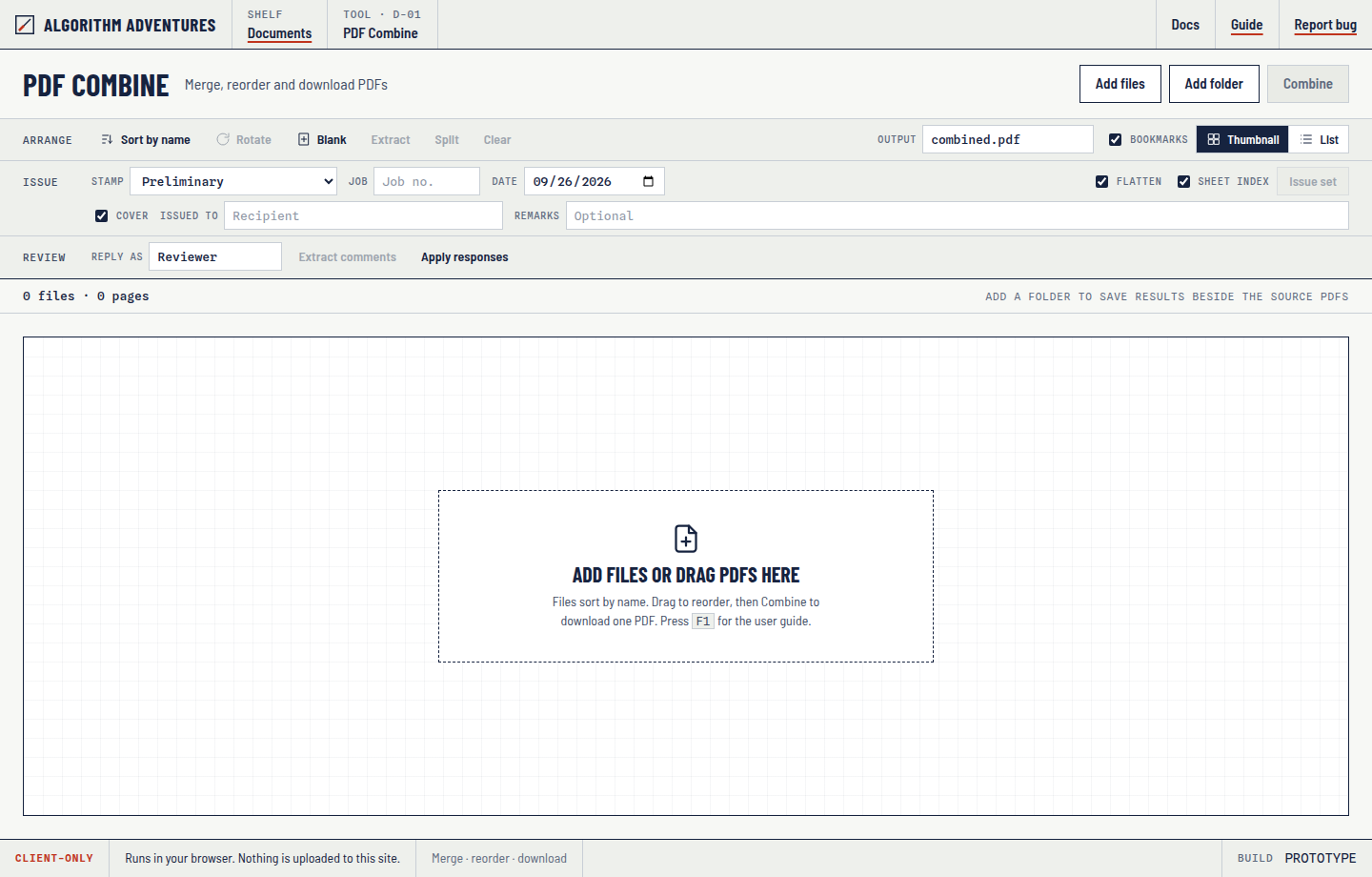
Toolbar map
| Control | What it does |
|---|---|
| Add files / Add folder | Pick PDFs, or ingest every PDF in a folder (subfolders included by the browser picker). |
| Combine | Download the current order as one PDF. Pages are copied as-is: no rasterize or recompress. |
| Sort by name | Natural filename sort (2 before 10). New files keep this order until you drag or move them. |
| Rotate | Turn the selection 90° clockwise. Repeats through 180° and 270°. |
| Blank | Insert a blank sheet after the last selected item (or at the end). Size matches the neighbor page; otherwise 24×36 in. |
| Extract | Save the current selection as one new PDF. |
| Split | Save every card as its own PDF, zipped. |
| Clear | Remove the entire working set. Does not delete files on disk. |
| Output | Base name for Combine, Issue, Extract, and Split files. |
| Bookmarks | When checked, Combine adds an outline entry per source file name. |
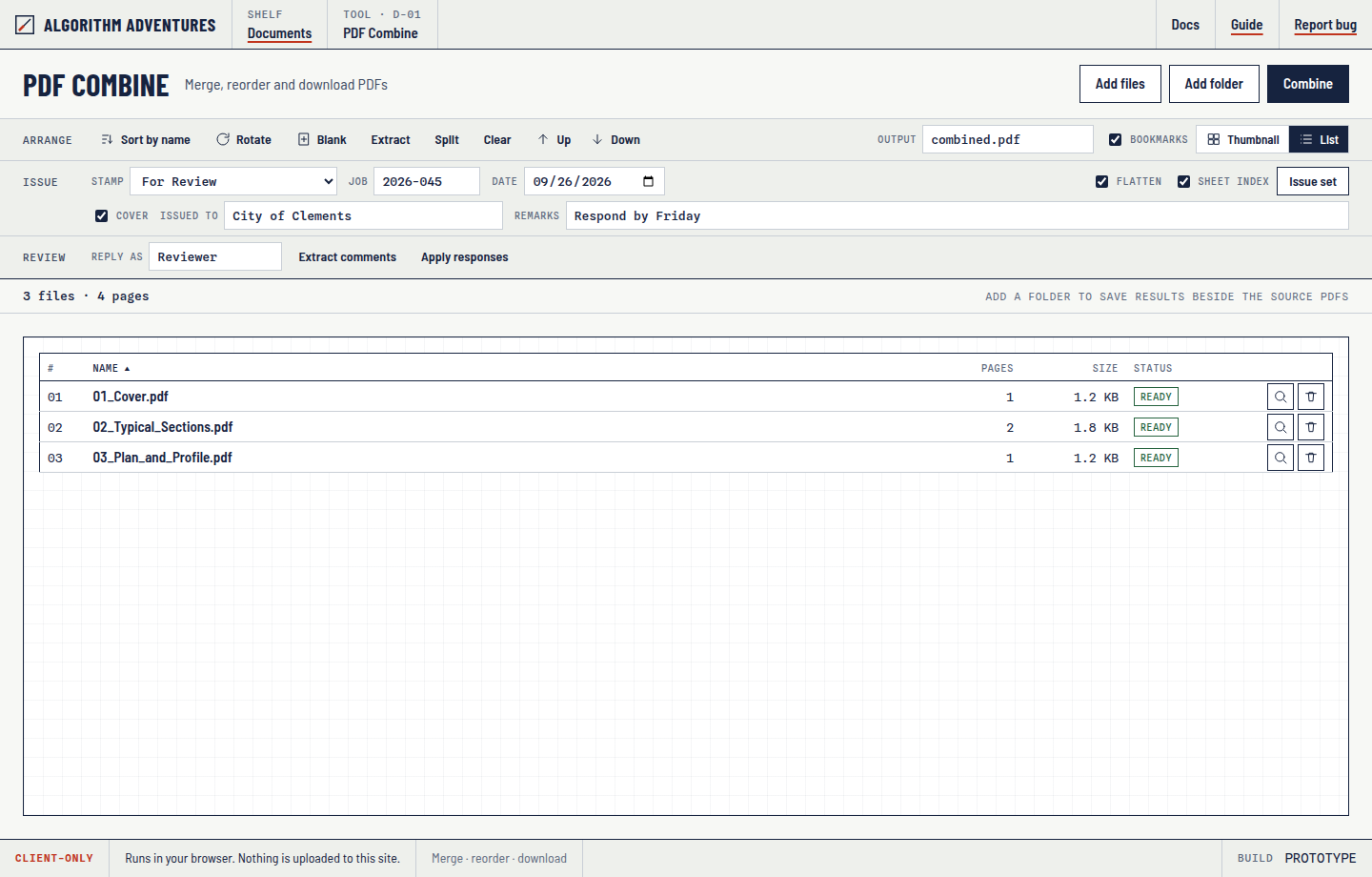
| Thumbnail / List | Card view for reorder and page work; table view for a compact file list. |
| Stamp / Job / Date | Issue line drawn as a faint diagonal plus a footer on every issued sheet. Remembered in this browser. |
| Issued to / Remarks | Recipient and optional note on the transmittal cover. Remembered in this browser. |
| Cover | Insert a transmittal as page 1 (job, date, stamp, issued to, sheet count, remarks). |
| Flatten | Burn comments into issued pages so they cannot be toggled off. Links stay live. Layers are always flattened on Issue: off layers stay off, on layers become ordinary page content, and the layer tree is removed. |
| Sheet index | Insert a table after the cover (#, sheet, title, set page). |
| Issue set | Write {Output}-Issued.pdf with the stamp, cover, flatten, and index options. Source PDFs are not overwritten. |
| Reply as | Author name stamped on PDF replies and on marks placed in preview (default Reviewer). |
| Extract comments | Build a redline Excel log from markup on the loaded PDFs. |
| Apply responses | Pick the filled *_Redlines.xlsx (opens in the source folder when known) and write replies onto copies of those PDFs. |
| Preview markup | In the detail window: Note, Highlight, Box, Cloud, Text. Save marked PDF writes {name}_Marked.pdf. Source files are not overwritten. |
3. Adding and arranging files
Only PDFs are accepted. Other types in a folder drop are skipped. Incoming files sort by name. After you drag to reorder, later adds append at the end so your custom order is preserved. Click Sort by name to restore name order.
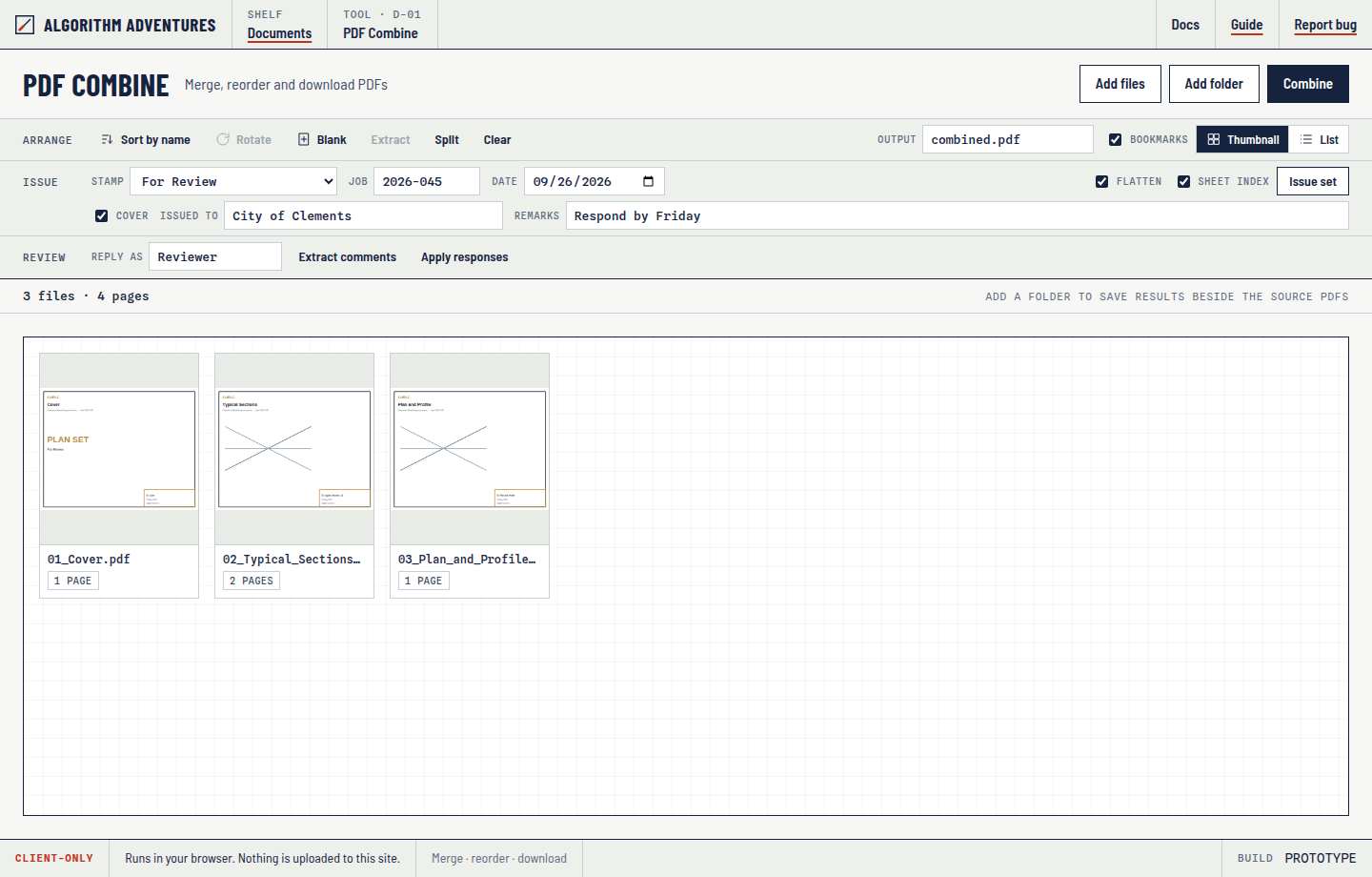
- Each card is one file until you expand a multi-page PDF into individual sheets.
- Hover a card (or select it) to show Expand, Rotate, Preview, and Delete.
- Drag a card to a new slot. A red bar marks the insertion point. Selected cards move together.
- Double-click a card (or press Enter) to open that sheet in a detail window. Scroll-wheel zooms, drag pans, Prev/Next steps pages. Esc closes it.
4. Selecting items and switching views
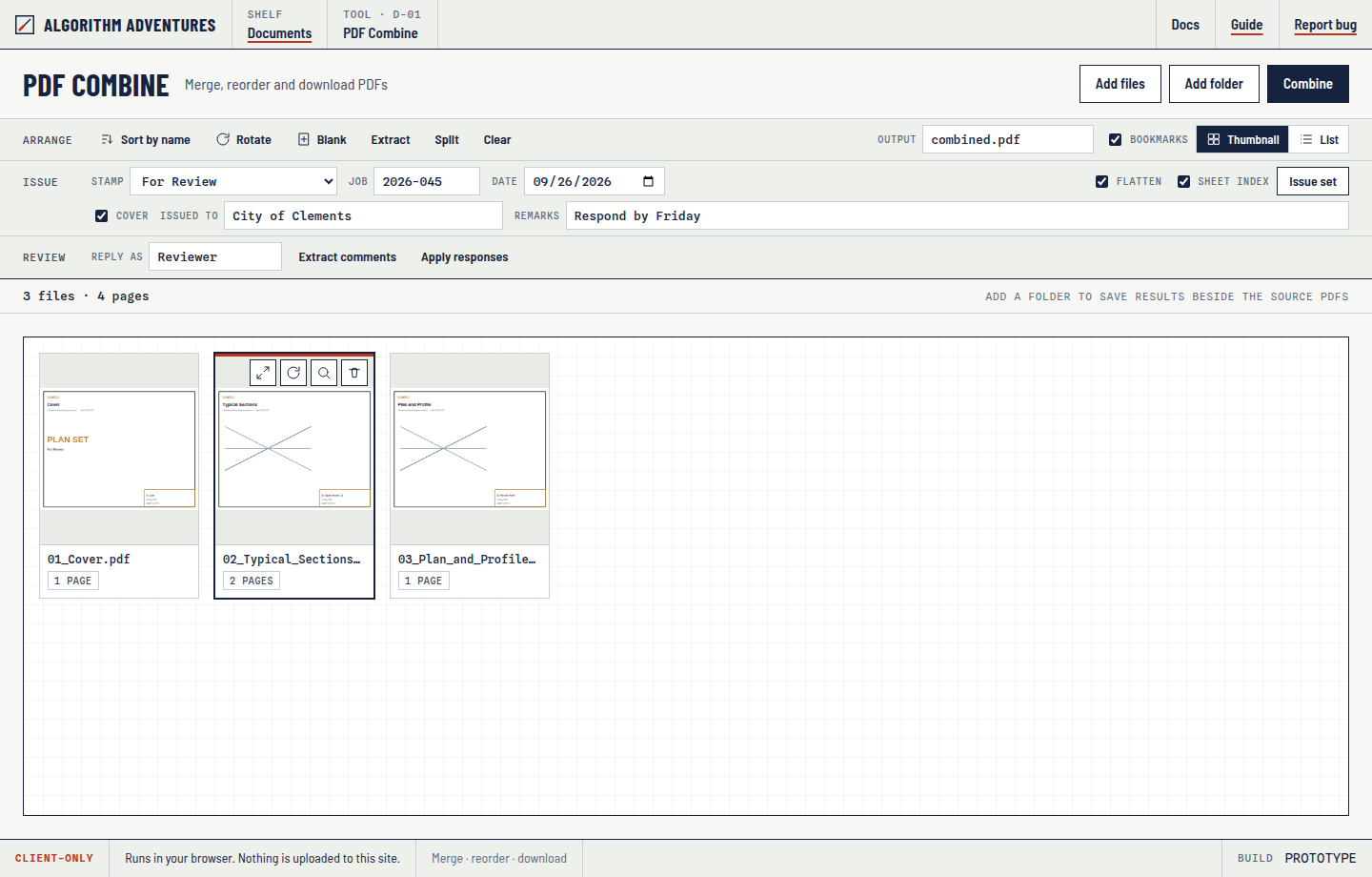
- Click selects one item.
- Ctrl / ⌘ + click toggles an item in or out of the selection.
- Shift + click selects a range.
- Ctrl + A selects everything.
- Delete or Backspace removes the selection from the working set (not from disk).
List view is better when you only need order, page counts, and file size. Click a column header to sort. Use Up and Down to move the selected file.
Walkthrough A · Combine a plan set
Use this when reviewers sent several PDFs and you need one bookmarked set for plotting or sharing.
- Add the sheets Add folder if they already live in one directory, or Add files / drag if they are scattered. Confirm the natural name order in thumbnail view.
- Fix order and orientation Drag cards, or expand a file and drag individual pages. Rotate any sheet that is sideways. Insert Blank where a plot set needs a separator or unused slot.
-
Name the output
Set Output to something like
Clements_Rd_Plans.pdf. Leave Bookmarks checked so each source file becomes an outline entry. - Combine Click Combine. With a folder added, the new PDF is saved in the source folder (the status line shows Saving to · folder name). Otherwise you get a Save dialog or a download. Originals on disk are not replaced.
Pages are copied as vector/CAD content whenever the source allows it. There is no compression preset; those paths were removed because they inflated civil plan files. Use Combine for an unmarked book. Use Issue set when you need a stamp, flattened comments, and a sheet index.
Walkthrough A2 · Issue a stamped set
Use this when the set leaves the office. Combine stays a clean archive. Issue writes {Output}-Issued.pdf.
- Arrange the sheets Same as Combine. The index follows the current order.
- Set the issue line Choose a stamp (Preliminary, For Review, Not for Construction, or Issued for Construction), plus optional Job, Date, Issued to, and Remarks. The stamp is a faint diagonal plus a footer on every drawing sheet. The issue line, Reply as, and Output name are remembered in this browser.
- Cover, flatten, and index Cover inserts a transmittal as page 1. Flatten burns comments into the page so they cannot be toggled off in Reader. Links stay live. Issue always flattens CAD layers (hidden layers stay hidden). Sheet index inserts a table after the cover (#, sheet, title, set page).
- Issue set Click Issue set. Source PDFs are not overwritten.

{Output}-Issued.pdf.Walkthrough B · Extract selected sheets
Use this to pull a subset (cover plus typicals, one discipline, one revision) without combining the whole set.
- Select what you want In thumbnail view, click the first card, then Shift-click the last. Or Ctrl-click a non-contiguous set. Expand a file first if you only want some of its pages.
-
Extract
Click Extract. The file is
{Output}-extract.pdf, using the Output field (extension stripped automatically).
Extract stays disabled until at least one card or row is selected.
Walkthrough C · Split every sheet to its own PDF
Use this when a single combined book needs to become one file per sheet for a folder deliverable or a sheet-by-sheet review.
- Load the book Add the combined PDF (or the loose sheets you already have in order). Expand a multi-page file so each page is its own card.
-
Split
Click Split. PDF Combine writes one PDF per card into a zip named
{Output}-split.zip. - Unzip Extract the zip next to your project folder. Sheet names come from the source file name plus page number when needed.
Walkthrough D · Rotate, blanks, and page surgery
Rotate
Select one or more cards, then Rotate on the toolbar or the card icon. Each click is +90°. Rotation is applied when you Combine, Extract, or Split.
Blank sheets
Select the card that should sit before the blank, then Blank. The new sheet matches that neighbor's page size. With nothing selected, the blank goes at the end and defaults to 24×36.
- Expand multi-page files Use the expand icon on a card that shows more than one page. Each sheet becomes its own card so you can delete, rotate, or drag a single page.
- Remove extras Select the pages or files you do not want, then Delete / Backspace, or use the trash icon.
- Collapse when done Collapse keeps the file together again after page-level edits.
Walkthrough E · Extract comments and write responses
This is the review loop: pull markup into Excel, answer in the log, then stamp replies onto a new PDF. Status stays in the spreadsheet only.
E1 · Extract the redline log
- Load the marked-up originals Add the same PDFs the reviewer commented on. Filenames matter later: Apply responses matches Source File exactly.
-
Set Reply as
Type the name that should appear as the PDF reply author (default
Reviewer). This value is also stored on the workbook's How to use sheet. -
Extract comments
Click Extract comments. The workbook is
{sheet title}_Redlines.xlsx(or the Output name if several files are loaded).
Each markup becomes a row, including highlights with no typed note, clouds, stamps, ink, and sticky replies (replies are extra rows with a parent ID). Sheet Title is the nearest PDF bookmark, or the filename if there is no outline.
E2 · Fill the spreadsheet
Open the xlsx in Excel. Work on the Review Log sheet. Status is a dropdown; other columns are ordinary cells.
| Column | You edit? | Notes |
|---|---|---|
| Item, Source File, Page, Sheet Title | No* | Identity of the mark. *Source File must still match the loaded PDF name when you write back. |
| Markup, Author, Date | No | Date is YYYY/MM/DD (PDF timestamps like D:20250121 are converted). |
| Reviewer Comment | No | Sticky text, or extracted overlay such as [Highlighted] "…". |
| Our Response / Context | Yes | This text becomes the PDF reply. Empty rows are skipped on write-back. |
| Priority | Optional | Free text (High / Med / Low or anything else). Log only. |
| Status | Optional | Dropdown: Open, In Progress, Addressed, Closed, Not Applicable. Default Open. Not written to the PDF. |
| Assigned To, Addressed Date, Notes | Optional | Internal tracking. Log only. |
| Annotation ID / Parent | Do not edit | How the reply is attached to the original mark. |
| Write Back | Yes | Yes (default) or No. No keeps the row in the log without creating a PDF reply. |
Do not edit Annotation ID. If you need a row for the record only, set Write Back to No and leave or fill Status as you like.
E3 · Apply responses
- Keep the originals loaded The PDFs still on the sheet must be the ones named in Source File. Re-add them if you closed the tool.
-
Apply responses
Click Apply responses and pick the filled
*_Redlines.xlsx. If you used Add folder, the picker opens in that source folder so you can choose the workbook even days later. -
Save the reviewed copies
Each source is written as
{name}_Reviewed.pdf(in that PDF's folder when known). Replies use Our Response / Context and the Reply as name. Status is ignored for the PDF.
A reply is a PDF comment threaded to the original annotation (IRT). Acrobat, Bluebeam, and similar viewers show it as a response. The source file on disk is never replaced.
Walkthrough F · Mark up a sheet in preview
Use this to place comments on the sheet you are looking at. This is not a full markup suite: no stamps, arrows, or measure. Excel extract / apply remains the batch reply path.
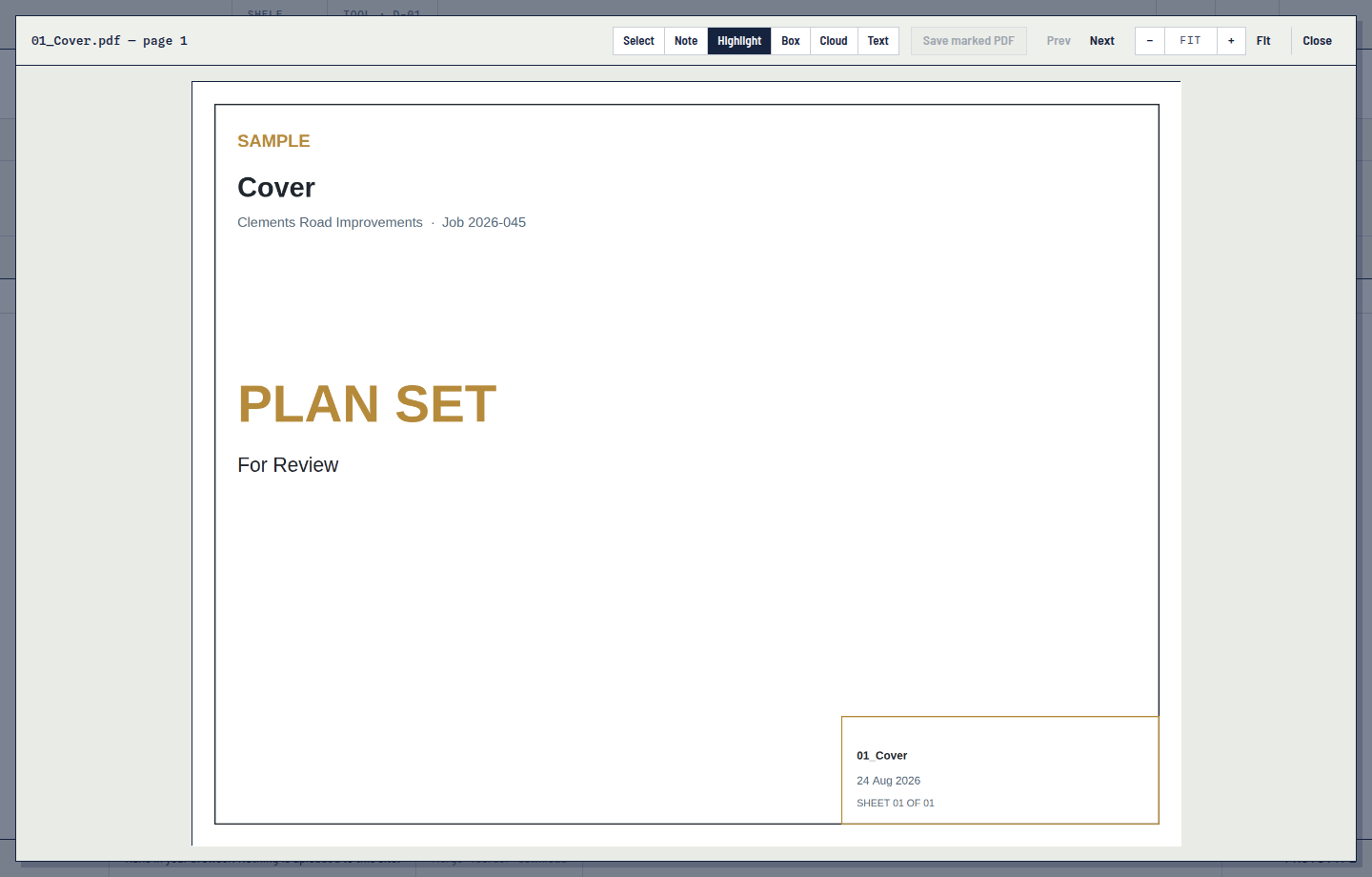
- Open the sheet Double-click a card, use the magnifying glass, or press Enter. Markup tools are in the preview header.
- Place a mark Note: click. Highlight, Box, Cloud, Text: drag. Author comes from Reply as. Select an existing dashed comment to type a reply. Select one of your drafts to edit or delete it. Source comments cannot be edited or deleted.
-
Save marked PDF
Click Save marked PDF. The tool writes
{name}_Marked.pdfand updates the working copy in memory so Extract / Combine / Issue see the marks. The original file on disk is not replaced.
Esc closes the note box first, then returns to Select, then closes preview. Unsaved marks ask before the preview closes.
{name}_Marked.pdf.Reference
Keyboard
| Key | Action |
|---|---|
| F1 | Open this user guide |
| Ctrl + A | Select all items |
| Shift + click | Select a range |
| Ctrl / ⌘ + click | Add or remove one item |
| Delete / Backspace | Remove selection from the working set, or delete the selected draft mark in preview |
| Enter | Open the selected sheet in the detail window |
| Esc | Close the note box, return to Select, then close preview (asks if marks are unsaved) |
| ← / → | Previous / next page in the detail window |
| + / − / 0 | Zoom in, zoom out, or fit the page |
What gets extracted as a comment
Sticky notes, free text, highlights, underlines, strikeouts, squiggly marks, rectangles, clouds, circles, polygons, lines, carets, stamps, ink, and file attachments. Links, form widgets, and watermarks are ignored. Highlights without a typed note still get a row using the text under the mark when it can be read.
Files written
| Action | File |
|---|---|
| Combine | The Output name (default combined.pdf) |
| Issue set | {Output}-Issued.pdf |
| Extract | {Output}-extract.pdf |
| Split | {Output}-split.zip |
| Extract comments | {name}_Redlines.xlsx |
| Apply responses | {name}_Reviewed.pdf per source file |
| Save marked PDF | {name}_Marked.pdf |
Troubleshooting
| Symptom | What to try |
|---|---|
| Empty sheet says vendor scripts failed | Reload the page. If you copied the folder, keep vendor/pdf-lib.min.js, pdf.min.js, pdf.worker.min.js, and xlsx.full.min.js next to index.html. |
| Thumbnails stay blank | The PDF still combines. Wait a moment, or preview with a double-click. Very large CAD sheets render slowly in the browser. |
| Very large set stalls or the tab crashes | There is no cap; the limit is your browser's memory. Combine in smaller batches, then combine the results. |
| Encrypted / corrupt alert | Open that file in Acrobat, remove security, and add it again. |
| Apply responses asks for original PDFs | Add files whose names match the Source File column exactly, then apply again. |
| Apply responses opens the wrong folder | Add folder for the project first so the picker starts there. Save the workbook in Excel before you pick it. |
| No rows wrote back | Need Write Back = Yes (or blank) and a non-empty Our Response / Context. Status alone will not create a reply. Save the xlsx before applying. |
| Files still land in Downloads | Use Add folder or drop the project folder (Chrome or Edge). A single Add files pick cannot see the disk path; you get a Save dialog opened on that file's folder instead. Firefox and Safari always download. |
| Save dialog instead of silent write | Grant write access when the folder picker asks. Clear and add the folder again if permission was denied. |
| Folder drop added nothing | Use Add folder, or drag the folder / files themselves. Some browsers do not expose folder contents on a plain drop. |
What stays here / what leaves
Your files never leave this browser. Nothing is uploaded to this site. Your files stay on this computer; the issue line, output name, and reply name are remembered in this browser. Cookieless page-view analytics go to Cloudflare. That beacon does not include file contents, file names, or anything you type.