01Getting started
What it does
Invert Desk turns survey points and pipe measure-downs into structure notes, connected runs, and CAD or GIS deliverables. Import a PNEZD CSV, enter pipe data, review the map and QA checks, then download the results.
Who it’s for
Survey crews and reviewers preparing structure and pipe deliverables from field shots. Coordinates and measure-downs use survey feet; verify the project coordinate system, agency codes, and measurement standards before use. QA flags support your review and do not certify the network.
Quick start
Open Configuration and adapt the example feature codes and note format to your standards. Ingest a CSV, review Points, and select a structure in Build to add pipes. Set the EPSG zone and Combined Scale Factor in Map, connect the runs, then review QA & Export. Save downloads the editable project JSON.
Based on Invert Master. The workflow is Ingest → Points → Build → Map → QA & Export.
Privacy
Nothing is uploaded. The project and configuration auto-save in this browser's storage; CSV formats, the selected basemap, and the dismissed setup notice are also stored here. Save downloads the project JSON and Open reloads it. Config stays in this browser until you export it, so export both the project and the config before clearing storage or switching machines. Map imagery needs internet (Esri basemaps). Tile requests reveal the viewed area to Esri, but include no project file data. Editing, import, and export work offline once the site assets are available. Clearing browser storage clears the session. Cookieless page-view analytics go to Cloudflare without file contents, file names, or anything you type. Report bug opens a separate form; submitting it sends the details you choose to include.
.json) you can back
up or send to someone — and each Save also records a milestone, the baseline for changes-only
exports (section 07). Save early, save often.The header bar
| Button | What it does |
|---|---|
| New | Starts an empty named project. Keeps the current configuration and Map settings, and auto-saves the new session. Save the old project first. |
| Open… | Loads a saved project. Files from the older Invert Calculator and Pipe Map tools open too, and are upgraded on the next save. A rejected import leaves the current project unchanged. |
| Save | Writes the project file and records a milestone. |
| Clear | Clears points, connections, field-check markers, and ingest history after confirmation. Keeps the project name, configuration, and Map settings. There is no undo; save a backup first. |
| Configuration | Feature codes, structure labels, parsing rules, and note templates. Apply your edits, then reopen Configuration to Export config.js — section 08. Custom CSV handles output columns; material and size lists are configuration-file settings. |
| Guide | Opens this page. The sheet uses one light look. There is no dark toggle. |
An amber dot next to the project name means changes since the last Save. Auto-save does not clear this indicator. If browser storage is full, an auto-save failing badge appears in the header — use Save to write the project file instead of relying on the session backup.
02Ingest — importing survey points
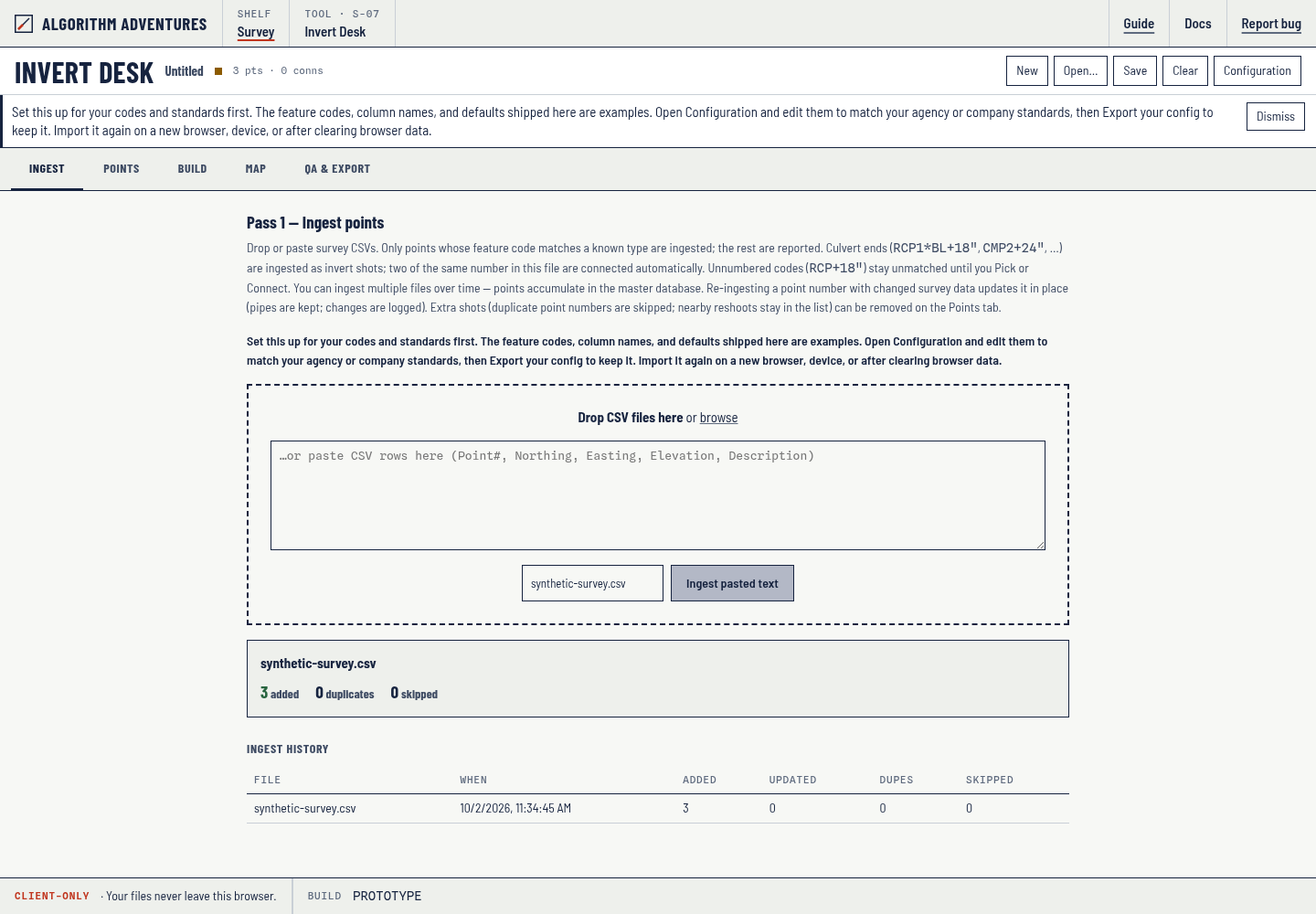
Drop one or more CSV point files onto the dashed area (or click browse, or paste rows into the text box). The expected column order is:
PointNumber, Northing, Easting, Elevation, Description
40016,6957241.06,2314966.94,424.07,MHS+BOLTED
How descriptions are read
The first word of the description that matches a known feature code sets the structure type. Everything
after a + is kept as a free-text note on the point. Line-work codes (BL BC EL EC)
are ignored, including when glued onto the feature code — MHSBL is read as MHS.
| Code | Structure | System | Measure point |
|---|---|---|---|
MHS | Storm Manhole | Storm | RIM |
MHW | Sanitary Manhole | Sanitary | RIM |
MH | Manhole — system not yet determined | — | RIM |
DI | Drop Inlet | Storm | TOG (top of grate) |
CI | Curb Inlet | Storm | BOC (back of curb) |
GI | Gutter Inlet | Storm | BOC |
RCP CMP CLV CPP PVC RCB | Culvert end | Storm | INV (shot is invert) |
Rows whose code matches nothing are skipped and listed in a per-file report, so a TREE or
EP shot never sneaks into the sewer data. If your crews use different codes, add them under
Configuration. The codes in the table above are examples.
Culverts
Storm outfalls are often a culvert into a channel. Glue a line number to the material code
(RCP1, CMP2) and put the size after +. Linework
(*BL / *EL) is stripped and is not required for pairing:
40080,6957100.12,2314800.44,412.10,RCP1*BL+18"
40081,6957088.40,2314792.11,411.86,RCP1*EL+18"
Two shots with the same number in that file become one connected run. A later file may
reuse RCP1 — it is a different culvert. Unnumbered codes (RCP+18") ingest as a
single invert endpoint; Pick or Connect them to a structure by hand. Dual barrels are
RCP1 vs RCP2 (two numbers). Three or more shots with the same number in one file
are left unconnected and listed on the ingest result.
Each culvert end is labeled 18"RCP FL=412.10' (size and material from the code; invert is
the shot elevation) — on the generated note and on the DXF invert text. Compass Auto-connect does not
try to pair culvert ends; the number in the file already did that.
Multiple field trips
- Points accumulate. Ingest trip 2 on top of trip 1 — nothing already imported is lost.
- Exact duplicates (same point number, same survey data) are counted and ignored. Nearby extra shots with different point numbers stay in the list — remove them on the Points tab or from a QA proximity cluster.
- Re-shot points update in place. Re-importing a point number whose survey data changed keeps the pipes you already entered, recalculates the inverts from the new rim elevation, logs the change, and resets the point's QC approval so someone looks at it again.
03Points — the master list
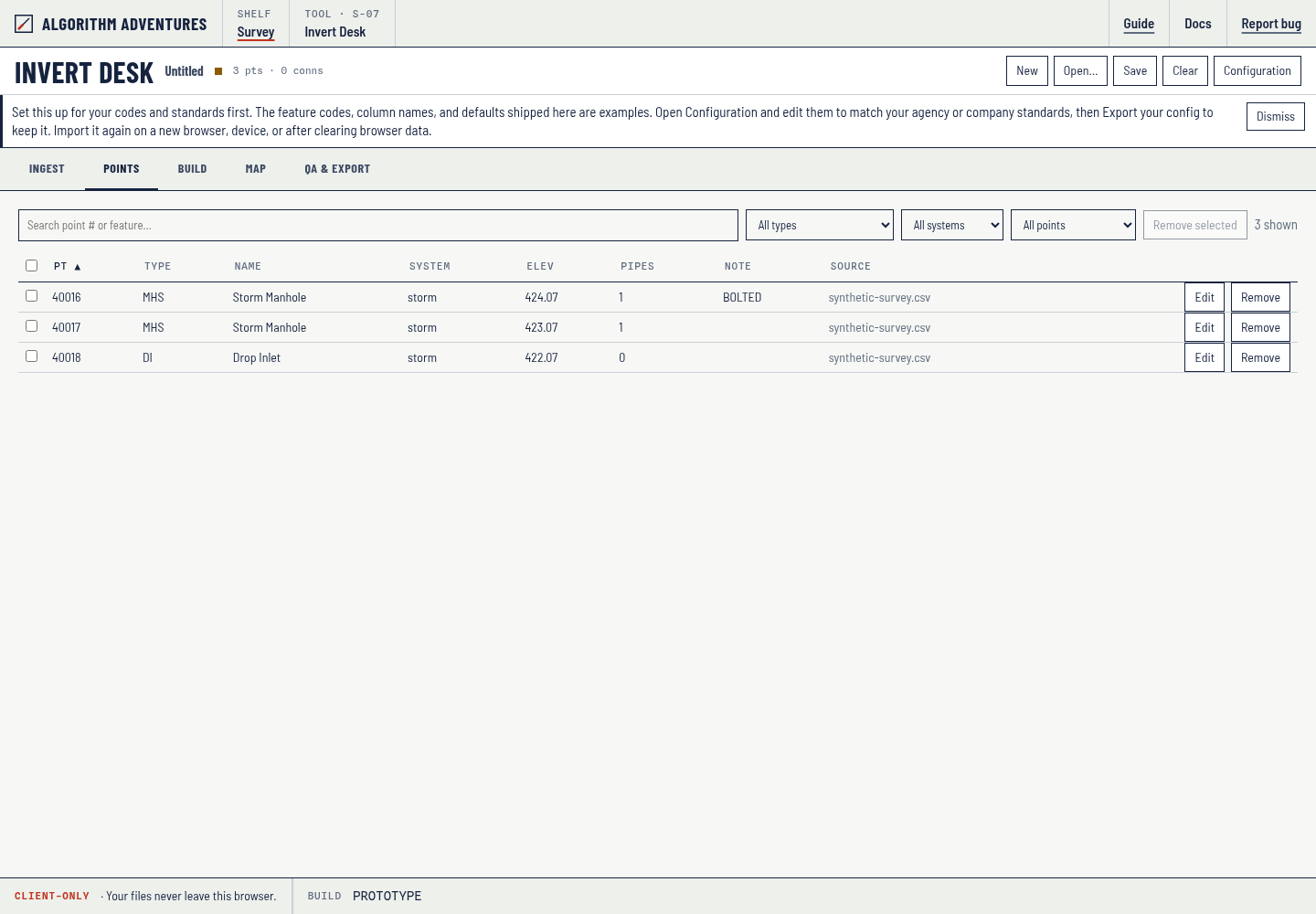
A human-readable table of everything in the project. Click PT or Name (or any other column) to sort; point numbers use numeric order so 9 comes before 10. An asterisk after the pipe count (e.g. 2*) marks a paired structure — the count includes its partner's pipes (section 04).
To drop a mistaken or duplicate shot, tick the row(s) and click Remove selected, or use Remove on that row. Filter Possible duplicates to only points that sit within 3 ft of another (the same clusters QA flags as reshoot / multi-shot / co-located, minus linked pairs). Connections to a removed point are deleted; a pair is unlinked and the partner stays. Changes-only export will list the point as deleted against a prior save.
04Build — entering pipe data
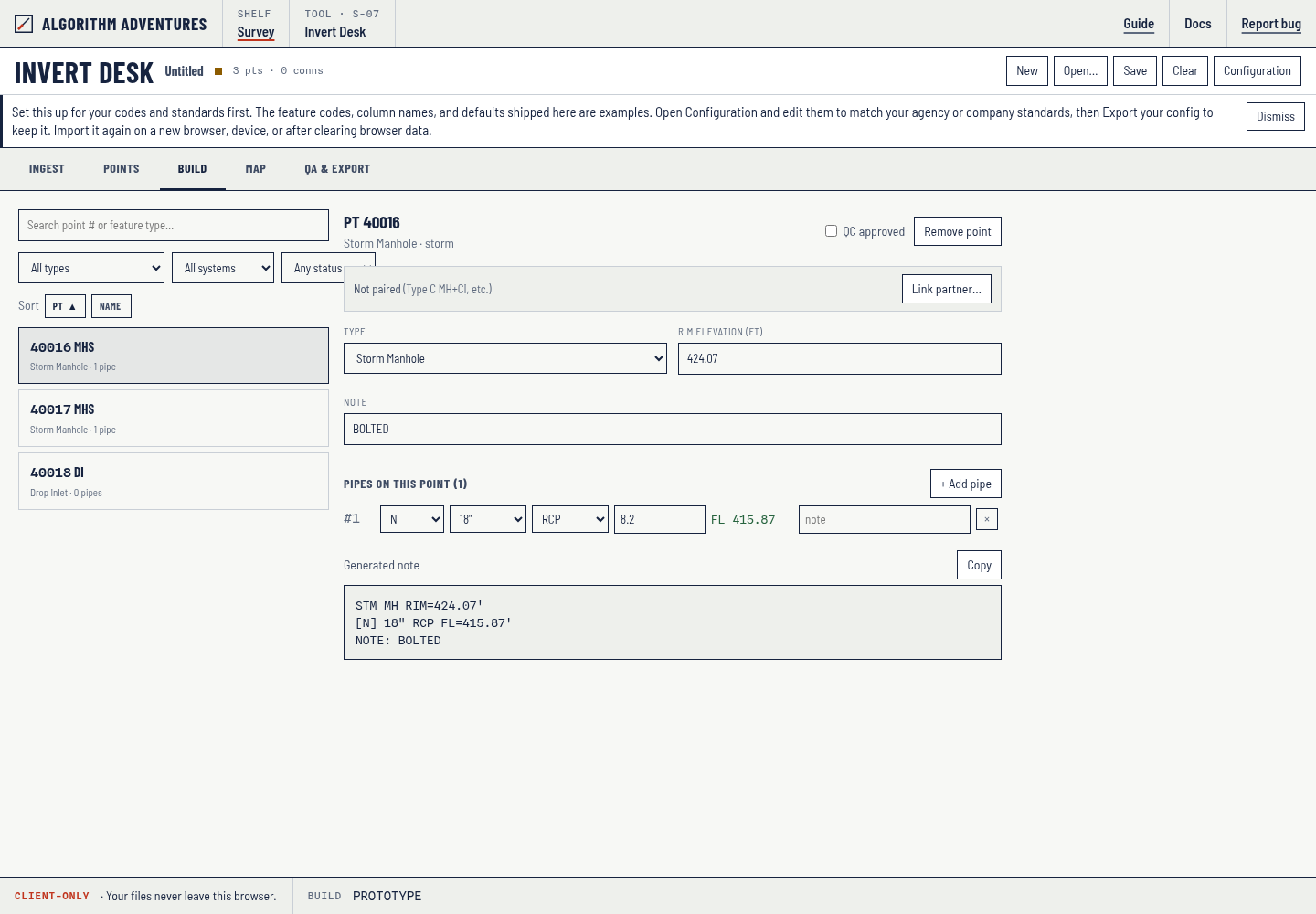
Entering measure-downs
- Find the structure in the left-hand list (search by point number or type; sort by PT or Name) and click it.
- Check the rim/grate elevation — it comes from the survey shot and can be corrected here.
- Click + Add pipe for each pipe. Set direction, size, and material, then type the measure-down — the taped distance from the measure point down to the pipe invert, in feet.
- The invert appears automatically: invert = rim elevation − measure-down. Nothing to calculate by hand.
- The Generated note panel updates as you type — the exact field-book text for this structure. Copy puts it on the clipboard.
Tick QC approved (top right) once the structure has been reviewed. The QA & Export tab tracks how many points are approved. Remove point deletes this structure from the project (same as Remove on the Points tab).
Paired structures (Type C manhole + inlet)
Some structures are surveyed as two shots but are really one asset — typically a manhole with an attached curb inlet. Linking them as a pair makes the app treat them as one structure: pipe counts combine, one note is generated (on the primary, normally the manhole), and the map and exports stop flagging the inlet as "no pipes".
- Open either structure in the Build editor.
- Click Link partner… in the bar above the type field.
- The app suggests nearby unpaired structures (within 3 ft by default), listing complementary manhole-and-inlet matches first. Pick the partner and confirm.
The pair bar then shows the partner, which point is primary, and the combined pipe count. Open partner jumps between the two; Unlink separates them.
05Map — connections and slope checks
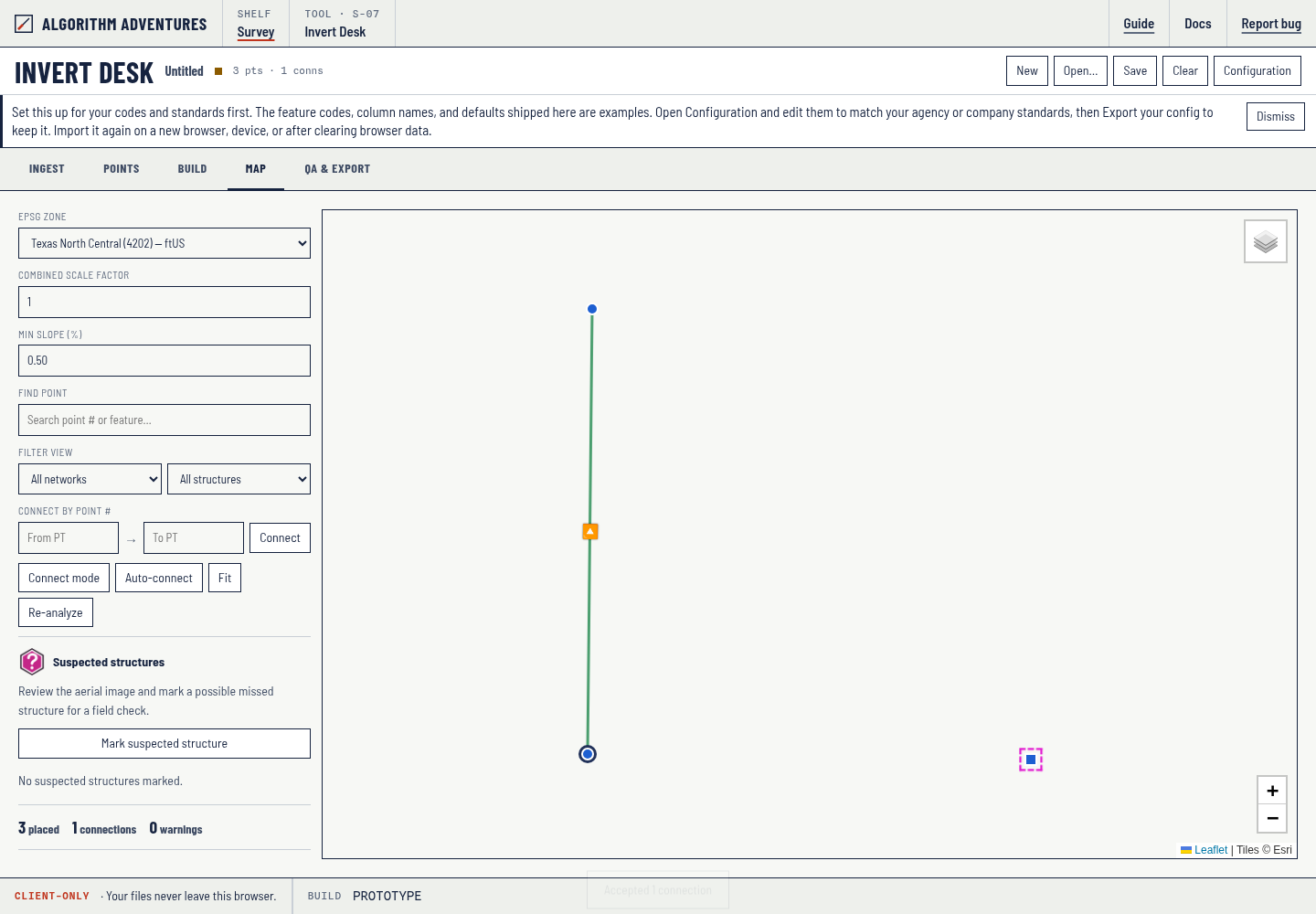
- Each structure is drawn at its surveyed position. Manholes use filled circles; drop, curb, and gutter inlets use squares. Culvert ends use short rectangles. Colors follow the system (storm / sanitary / undetermined); a dashed halo means the structure — or its pair — has no pipes entered yet.
- Fit zooms to the whole project; the search box finds a point by number; Filter view narrows to one network or structure type.
- Satellite, Hybrid, and Topographic support close inspection up to zoom level 24. Above level 19, the map enlarges the available imagery; it does not add aerial detail.
Companion structure editor
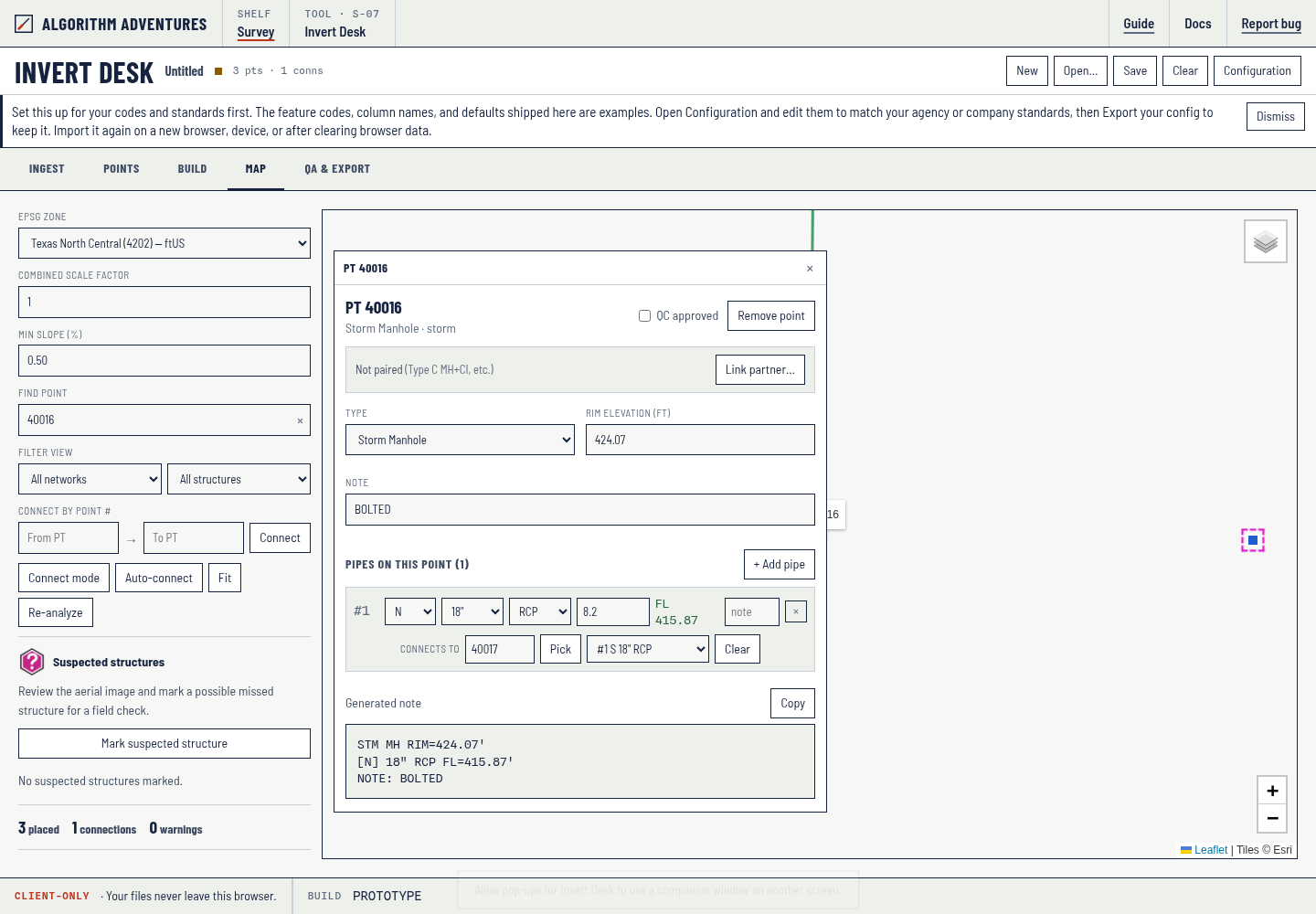
Click any structure to open a companion editor. Where supported, Chrome/Edge document Picture-in-Picture keeps it on top of other windows; otherwise the app tries a normal pop-up, then an on-map overlay. Drag it to another monitor. Add pipes there, then for each pipe type a Connects to point number or click Pick and click the other structure on the map — that writes the connection and chooses the matching pipe on the far end when it can. The far-end pipe dropdown lets you assign or change it. Clicking another structure updates the same companion without pulling it back to this screen. Custom sizes, Link partner, and other dialogs open inside the companion, not on the map window.
Closing the main window closes the companion. Esc on the map cancels Pick; Esc in the companion closes a dialog first, then the window if you are not picking. If the editor is a normal pop-up instead of always-on-top, use Show editor on the Map tab to bring it forward — or click Invert Desk after another app was in front.
Suspected structures from aerial review
Use Satellite or Hybrid to inspect the aerial imagery. Choose Mark suspected structure, click the possible missed structure, and enter a note describing what the field crew should verify. Choose Place marker to save it; Esc cancels placement. This is a manual review tool.
A magenta hexagon with a question mark identifies these approximate locations in the app and KMZ. They stay separate from surveyed points and are not included in survey PNEZD or DXF geometry. Their latitude/longitude stays fixed when EPSG or scale factor changes. Structure and network filters do not hide field-check markers.
After a visit, click the marker or its Review button to revise the note, set Field visited, or Remove marker. A visited marker remains visible until removed. Notes, status, and locations persist in project saves and auto-save.
Both the full project and deficiency-only KMZs include a separate field-check folder and an embedded icon that works offline. Their ZIPs include suspected-structures.csv with Northing and Easting in the selected project coordinate system, notes, status, and timestamps. For these approximate aerial picks, the exporter converts WGS84 to grid coordinates and divides by the Map tab’s Combined Scale Factor to match the surface coordinates of survey points. Coordinates are rounded to three decimals; the stored locations and KMZ remain WGS84. Set the correct EPSG zone and a positive scale factor before export. A changes-only deficiency export reports added, modified, and removed markers; full exports omit removed markers.
Coordinate settings
The layer picker offers Satellite, Hybrid (aerial imagery with labels, the default), and Topographic. The last selected background is remembered on this device.
EPSG zone and Combined Scale Factor control how survey coordinates are placed on the world map. Set the zone once per project; if your coordinates are surface rather than grid, enter the project CSF. If structures land in the wrong place on the map, these two settings are the reason. DXF exports are unaffected either way — they always use the raw survey coordinates.
Connecting pipes into runs
- Click Connect mode, then click the two structures in either order — or type the two point numbers into From PT / To PT and click Connect. You can also assign a run from the companion editor: Pick (or type) the other structure on each pipe. Flow arrows follow invert elevations (higher FL to lower FL), not the order you clicked.
- If either end has more than one pipe, the app asks which pipe the run uses.
- Repeat for every run. Click a drawn connection to review or delete it.
Auto-connect
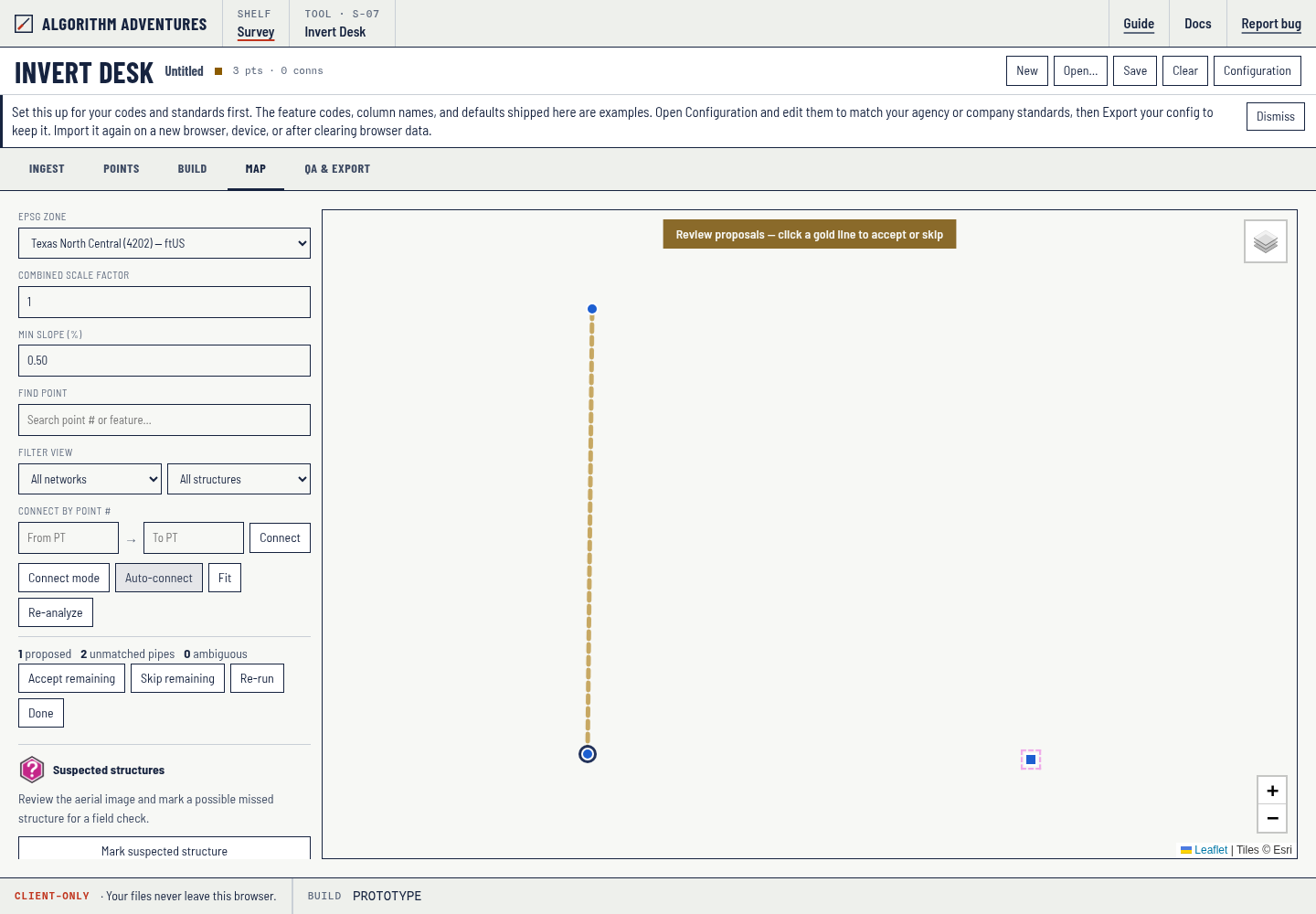
Auto-connect looks at entered pipes with a compass direction and proposes runs where two structures face each other (for example 8″ VCP N at one manhole and 8″ VCP S at the next) within 600 ft and about a 22.5° bearing cone. Dual barrels in the same direction to the same target become two proposals. Proposed links show as gold dashed lines — click to accept or skip, or use Accept remaining / Skip remaining. Nothing is written to the project or DXF until you accept; leaving review without accepting discards the gold lines. Auto-connect skips any pair that already has a connection. Leftover pipes that have no unique partner stay unmatched; use Connect mode or Pick for those.
Unconnected pipes with a compass direction show as short stubs on the structure so
leftover inlets and manholes are obvious. The DXF export draws the same leftover pipes as
labeled ticks on SAN-STUB / STM-STUB (and matching -LABEL)
layers so they can be frozen independently of connected runs. Changes-only DXFs use the same names with
a -REV suffix (e.g. STM-STUB-REV).
When two (or more) connections share the same two structures, the map and the DXF draw them as parallel lines in survey feet (the same State Plane coordinates as the DXF), spaced by at least the largest pipe width in that run so dual barrels no longer sit on top of each other.
Slope and flow analysis
Re-analyze recomputes every connection — length from coordinates, drop from the two inverts, slope — and flags:
- Flat or shallow slope — below the minimum slope threshold, or a flat invert (0% drop). Flow arrows follow invert elevations (higher FL to lower FL), not the order the connection was drawn.
- Size mismatch — pipe diameter changes between the two ends.
- Cross-system — e.g. a storm pipe connected to a sanitary manhole.
The same analysis is included in connections.csv inside the full project ZIP. You can also choose connection rows in Custom CSV.
06QA & Export — checks and deliverables
Quality checks
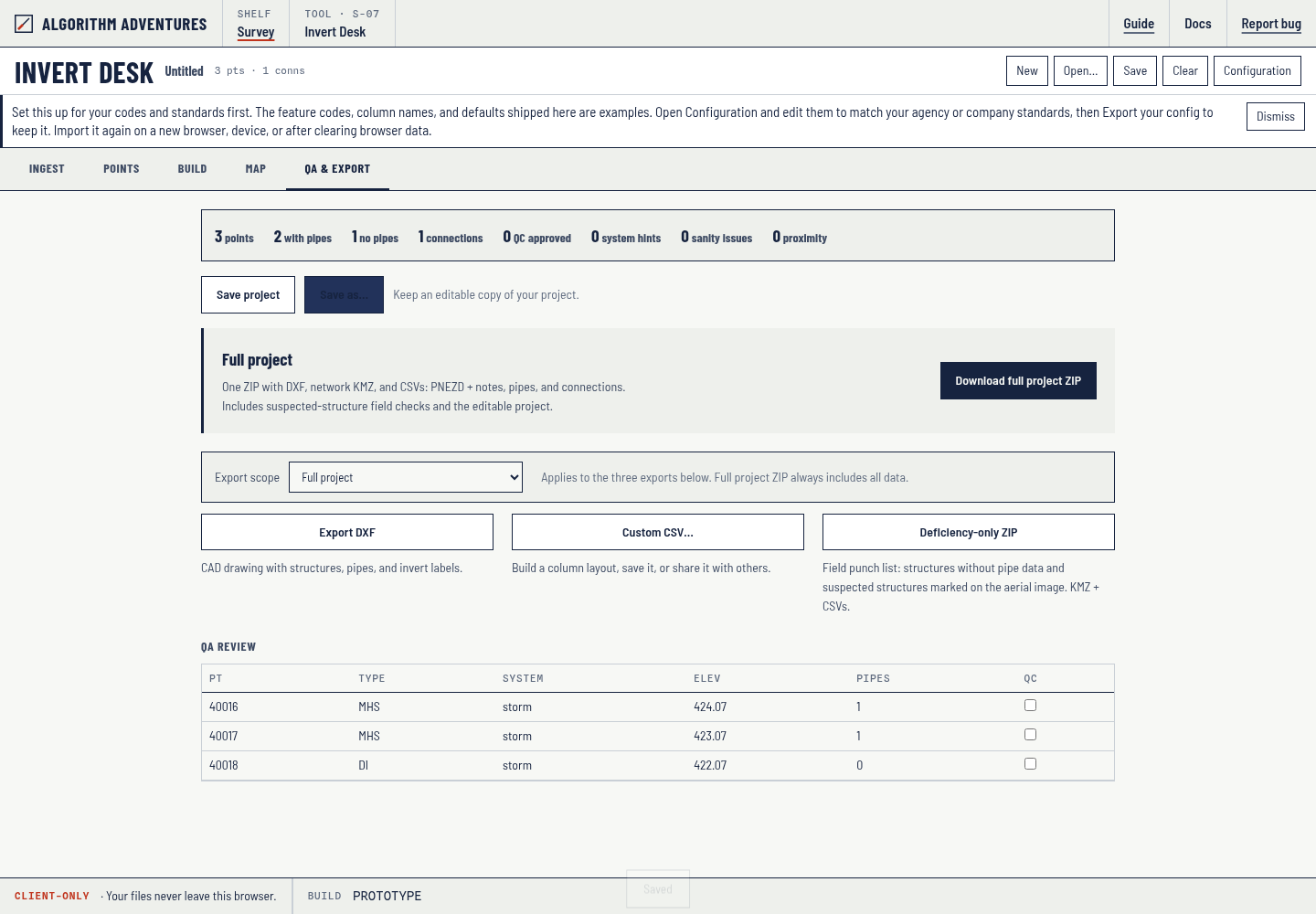
- The summary strip counts points, points with/without pipes, connections, QC approvals, and warnings.
- System hints flag probable mis-coded structures — for example an 8″ VCP pipe (classic sanitary) on a structure coded storm.
- Physical sanity checks catch impossible measurements: negative measure-downs, inverts at or above the rim (skipped for culverts, where the shot is the invert), implausible depths.
- Proximity flags structures shot within 3 ft of each other: two of the same type is a likely reshoot, three or more a multi-shot, and mixed types are co-located — often a manhole + inlet pair that should be linked on the Build tab. Legitimate clusters can be dismissed (remembered in the project file); linked pairs are never flagged. Click × on a point in the cluster to remove that extra shot from the project.
- The QC review table is a one-line-per-point checklist — tick each point as it is reviewed.
Export formats
| Export | Contents / use |
|---|---|
| Save project (JSON) | The master project file. This is the file you back up and reopen — always keep it. |
| Save as… | Downloads the same editable JSON and records a milestone, just like Save project. This site does not offer a separate filename dialog or overwrite an opened file. Rename the downloaded copy yourself. |
| Full project ZIP | One download with network.dxf, network.kmz, points.csv (PNEZD + generated, field, and pipe notes), pipes.csv, connections.csv, the editable project.json, and a README. Always includes the full project, regardless of map filters or export scope. |
| Custom CSV… | Choose point, pipe, or connection rows; choose and reorder fields, rename column headers, add fixed text or blank columns, and set delimiter, decimal places, and optional headers. Preview the first five rows before downloading. |
| DXF (AC1015) | AutoCAD 2000-format drawing in raw survey coordinates (US Survey Feet). Layers per system: pipes, labels, unmatched-pipe stubs with labels, structures with type symbols, invert text. Opens in AutoCAD, Civil 3D, MicroStation. |
| Deficiency-only ZIP | Field punch list: structures without pipe data plus suspected structures marked during aerial review. Includes KMZ, PNEZD CSV for surveyed structures, and a separate Northing/Easting CSV for field-check markers, converted to the project EPSG zone and divided by the Combined Scale Factor. Linked structure pairs with pipes are excluded from the no-pipe list. |
In Custom CSV, give the layout a name and choose Save format to reuse it on this device across projects. Share format… downloads a .csv-format.json file. Another user can choose Import format…, inspect the preview, then save the format on their device. Format files contain the layout, not project records. CSV coordinates use stored survey values.
The full KMZ contains structures, culverts, pipe connections, and direction ticks for unconnected pipes. Survey elevations remain in the feature attributes; features are clamped to terrain in Google Earth. Points without usable coordinates stay in the CSVs and project JSON; the ZIP's README lists any map features that could not be placed.
07Changes-only exports — after a return trip
After several field trips you often need to hand the CAD tech only the revisions, not the whole project again. That is the Export scope selector.
Every time you Save, the app records a milestone — a snapshot of every point at that moment. Choose "Changes since ‹milestone›" in the selector to scope DXF, Custom CSV, and the deficiency-only ZIP to that snapshot. Full project ZIP and project saves always include the complete project. The summary next to the selector shows what is in scope, e.g. 1 added · 1 modified · 1 deleted.
| Format | What changes in a changes-only export |
|---|---|
| CSVs | Only added and modified rows, with a Status column, plus DELETED rows listing removed points at their last known coordinates. |
| DXF | Everything lands on layers ending in -REV (e.g. STM-STRUCTURE-REV, STM-STUB-REV), so the CAD tech overlays it on the previous drawing and sees exactly what is new. Deleted structures appear as red X markers labeled PT ‹number› DELETED on a DELETED layer — a to-remove list, since a DXF cannot erase anything by itself. |
| KMZ | Surveyed pins are color-coded: green = added, yellow = modified, red = deleted. Suspected structures retain their question-mark hexagon, with revision status in the description and explicit removed-marker titles. |
-rev files.-rev marker.Custom CSV adds a Status column for revision exports if the layout does not already include it. Pipe rows contain recorded pipes plus deletion markers for removed points. Connection rows show current connections touching changed points; the existing milestones track point changes, so they do not provide a history of removed connections.
08Configuration
The Configuration button opens the feature-code and note-format editor. The feature codes, column names, and defaults shipped here are examples. Edit them to match your agency or company standards, choose Apply, then reopen Configuration and use Export config.js. Export reads the applied configuration, not uncommitted dialog edits. Use Import config JSON to load that exported config.js (or a JSON configuration) on another browser or device. The import control accepts both formats.
- Feature-code table — add or change the codes your crews use, including aliases
(e.g.
CBIfor a curb inlet). - Structure types — labels, measure-point wording (RIM / TOG / BOC / INV), note prefixes.
- Parsing — linework codes, culvert codes, and the note separator.
- Note format — templates for structure headers, pipe lines, and culvert ends.
Culverts use the same token set; the default end label is
18"RCP FL=412.10'.
Material and pipe-size lists, map matching, and dual-pipe spacing live in the configuration file (export, edit, and re-import your own copy) with the matching and spacing keys under the map block (not the Configuration
dialog): autoConnectMaxFt (default 600), autoConnectBearingDeg (default 22.5),
and pipeOffsetMinIn (default 8 — minimum dual-barrel spacing in inches). Projects saved
before those keys existed pick up the defaults on open without changing your points or connections.
The configuration is saved inside each project file, so a project opened on another machine behaves identically. Configurations can also be exported and imported as files to share a company standard.
A generated structure note using the default format:
PT 40016
STM MH RIM=424.07'
[N] 18" RCP FL=415.87'
[N] 24" RCP FL=415.72'
[E] 18" RCP FL=415.92'
NOTE: BOLTED
A culvert end using the default culvert template (editable next to the structure header in Config):
18"RCP FL=412.10'
09Tips and Troubleshooting
Save a backup before opening an unfamiliar project. If Open rejects malformed JSON or project records, your current project and unsaved edits remain intact. Correct the file or choose a known-good backup. Keep dated downloads as well as browser recovery.
| Symptom | Fix |
|---|---|
| The hosted app is blank or its assets fail to load | Reload Invert Desk. Scripts, styles, and map assets are part of this site. Nothing is uploaded from your project. |
| Save downloads a file instead of saving in place | Save always downloads JSON on this site, including over HTTPS. It does not overwrite the file you opened. Keep and rename the downloaded backups. |
| Structures in the wrong place on the map | Wrong EPSG zone or Combined Scale Factor on the Map tab. DXF output is unaffected either way. |
| Map background is blank gray | Map imagery needs an internet connection. All data functions still work without it. |
| KMZ export reports nothing could be projected | Set the correct EPSG zone (and CSF) on the Map tab first. |
| Imported file shows many skipped rows | Those descriptions matched no feature code. Check the skipped-codes report on the Ingest tab; add missing codes under Config. |
| A point lost its QC tick after re-importing | Its survey data changed on re-import, so approval was reset on purpose — re-review the point. |
| Clicking a structure does not open a separate window | The browser blocked the pop-up. Allow pop-ups for this site. Until then the same editor appears as an overlay on the map. |
| The companion window is behind another app | Supported Chrome/Edge versions can use document Picture-in-Picture. If you have a plain pop-up instead, click Show editor on the Map tab, or click Invert Desk after leaving another app. |
| Custom… pipe size does nothing in the companion | Update to the current build — the size dialog now opens inside the companion. Older builds tried to prompt on the main window, which Windows hides behind the editor. |
| Auto-connect finds nothing | Pipes need a compass direction, a unique reciprocal at the other structure, and no connection already on that pair. Widen the search in config.js (autoConnectMaxFt / autoConnectBearingDeg) or connect by hand. |
| Header shows “auto-save failing” | Browser storage is full. Use Save to write the project JSON; auto-save will resume when space is available. |
| Wrong data entered and saved | Reopen the last good project JSON (keep dated backups of your saves). |
Glossary
| Term | Meaning |
|---|---|
| Invert | The inside bottom elevation of a pipe — the surface water actually flows on. |
| Measure-down | Taped distance from the structure's measure point (rim, grate, or back of curb) down to a pipe invert. |
| FL | Flow line — same as invert; the term used in generated notes. |
| RIM / TOG / BOC / INV | Measure points: manhole rim, top of grate (drop inlet), back of curb (curb/gutter inlet), invert (culvert end — the shot is the flow line). |
| CSF | Combined Scale Factor — converts surface distances to grid for map placement. |
| Milestone | Snapshot recorded at each Save; the baseline for changes-only exports. |
| Pair | A manhole and inlet linked as one logical structure (Type C). |
| Provisional connection | A run drawn between structures before both pipe ends are measured. |
| Companion window | The structure editor opened from Map: Picture-in-Picture where supported, otherwise a pop-up or on-map overlay. |
| Stub | A leftover directed pipe with no unique connection — a short tick on the map and on SAN-STUB / STM-STUB in the DXF. |
| Auto-connect | Map review that proposes reciprocal pipe runs (gold dashed lines) before you accept them into the project. |
| Dual barrel | Two (or more) connections between the same two structures, drawn as parallel lines spaced by pipe width. |
| Culvert | Storm pipe end shot at invert. Numbered codes in one file (RCP1) auto-connect; unnumbered codes wait for Pick/Connect. Label: 18"RCP FL=elev. |